 Satisfactory Production Planner
🇯🇵 日本語
Satisfactory Production Planner
🇯🇵 日本語
Start with a repeatable unit
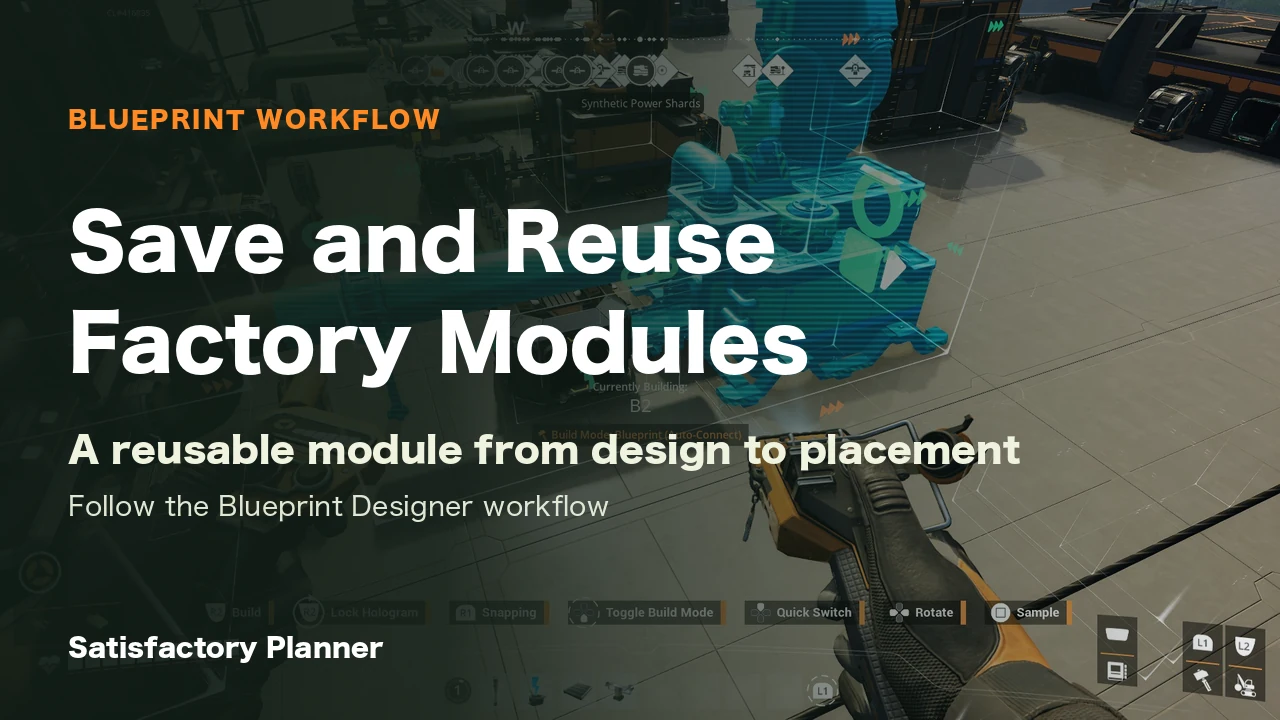
The Blueprint Designer saves a group of buildables as a Blueprint you can place elsewhere. This is separate from Satisfactory Planner production calculations and floor-area estimates. Start with a compact module whose input side, equipment, and output side can be oriented consistently.
Choose the input and output sides, the direction used to align copies, and room for belts or pipes you will connect later. This is a layout recommendation for easier reuse, not a game requirement.
Check the Designer Mark and boundary
Coffee Stain Studios’ Update 1.0 announcement records the Mk.1 Designer at Tier 4 with a 32 m boundary, Mk.2 at Tier 6 with a 40 m boundary, and Mk.3 at Tier 9 with a 48 m boundary. The table shows the cubic build boundary on each axis. It is not the exterior footprint of the Designer building.
| Designer | Unlock | Build boundary |
|---|---|---|
| Mk.1 | Tier 4 — FICSIT Blueprints | 32 × 32 × 32 m |
| Mk.2 | Tier 6 — FICSIT Blueprints Mk.2 | 40 × 40 × 40 m |
| Mk.3 | Tier 9 — FICSIT Blueprints Mk.3 | 48 × 48 × 48 m |
Save a Blueprint and place it in the world
The Official Satisfactory Wiki says buildables must fit inside the Designer boundary before you save a Blueprint from the attached terminal. Listed save details include a name, description, Build Menu category and subcategory, icon, and background color.
After saving, select the Blueprint from the Build Menu and inspect the placement hologram orientation and surrounding space before placing it. This guide describes the general workflow without naming a particular button or input-device control.
Keep editing separate from Auto Connect
The Wiki says a Blueprint made in a Mk.1 Designer cannot be individually edited in a Mk.2 or Mk.3 Designer. Begin edits in the same Mark that created the design, and verify whether saving overwrites the original or allows a separate name. The Wiki does not establish every overwrite, copy, or migration condition.
Auto Connect is a separate placement feature for candidate links between transport endpoints. For that workflow, see the [Blueprint Auto Connect guide](https://satisfactory-planner.net/en/articles/blueprint-auto-connect/).
Sources for dimensions, features, and terminology
Related guides
Try it in the planner
Opens the planner with the conditions from this guide already loaded. Target rates and the recipes you allow can be changed once it is open.
Plan a product for your reusable factory module