 Satisfactory Production Planner
🇯🇵 日本語
Satisfactory Production Planner
🇯🇵 日本語
Find candidates between module endpoints
Repeated factory modules can mean repeating the work of joining belts, pipes, and railways. Blueprint Auto Connect, added in Update 1.1, searches for possible links between transport endpoints in a Blueprint and existing inputs or outputs while you move its placement hologram. The candidate links appear before you place it. The current Official Satisfactory Wiki lists conveyors, pipes, railways, and Vehicle Paths as supported types.
Start with a Blueprint that has one kind of endpoint so the preview is easier to read. Coffee Stain’s PC instructions say to press R while a Blueprint hologram is active to change its Build Mode. For other input devices, follow the current on-screen hint and control settings. This guide uses the English mode name Auto Connect; it does not claim to have verified the current Japanese UI translation.
Inspect the candidate before placing
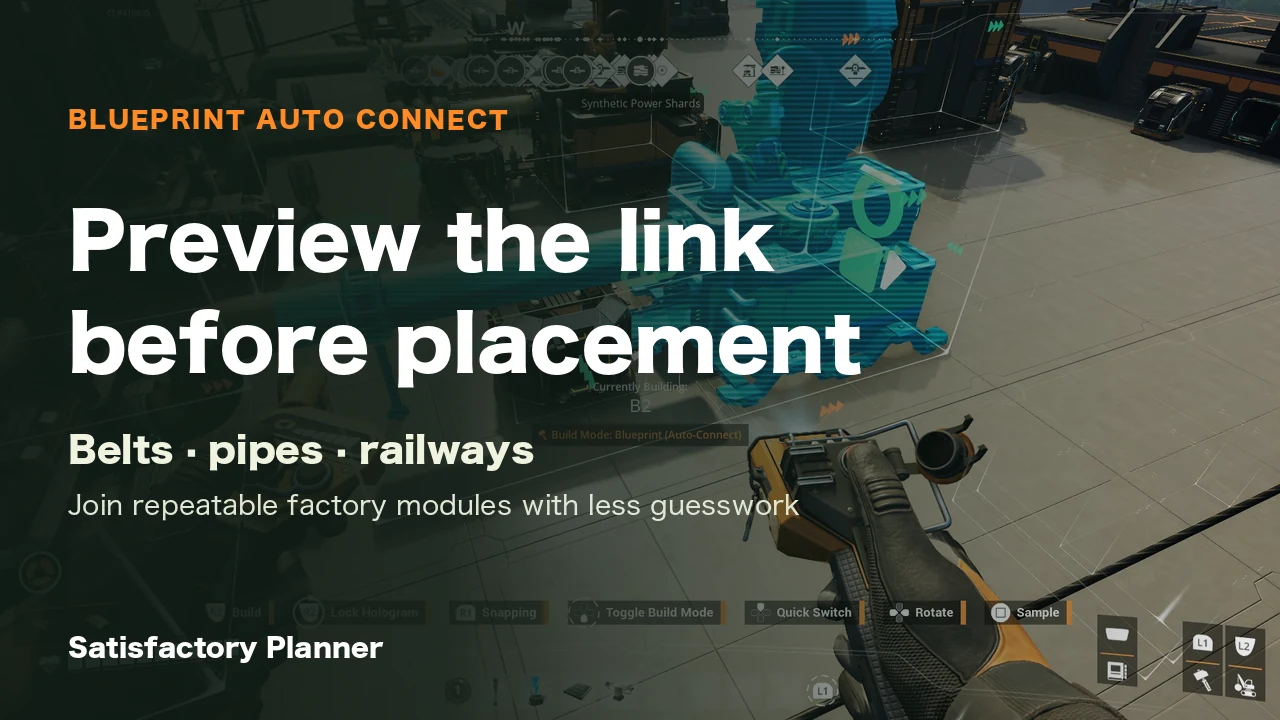
Move the hologram close to an existing endpoint and look for the intended candidate link. The Press Kit image shows Blueprint Auto Connect mode, a chain-shaped candidate indicator, and the connection preview, but it is an older controller capture. Do not treat its button hints as current controls. If the intended candidate is missing or a different endpoint appears, adjust the hologram position or orientation before confirming placement.
Coffee Stain’s Update 1.1.0.2 announcement and the Official Wiki list 16 m as the candidate-detection distance. Update 1.1.0.2 records an increase from 10 m to 16 m. This is the range for finding candidate links, not the length of a belt, pipe, or railway created after connection. Distance alone does not guarantee a connection when endpoint shapes or terrain differ.
After placing the Blueprint, verify that the transport segment actually meets the intended endpoint. Coffee Stain’s Update 1.1.0.6 fix notes include corrections for Auto Connect visualization and confirmation. That history supports checking the result; it does not claim that an old issue remains in the current version.
Troubleshoot a missing candidate
When a link does not appear, check in order: (1) whether Blueprint Auto Connect is the active Build Mode, (2) whether the Blueprint includes the belt, pipe, or railway endpoint, (3) whether the intended candidate is visible on the hologram, and (4) whether a different nearby endpoint is being detected. Change position, orientation, and nearby endpoints one at a time so you can see which change affects the preview.
A visible candidate does not guarantee that the connection will match your intended layout, or that every terrain and height difference will work. Use the current in-game prompt to select the candidate, then inspect the connection after placement. Power lines are not listed in the official Auto Connect transport types, so check power connections separately.
Scope of this guide
This guide focuses on Auto Connect candidates for belts, pipes, and railways between production modules. The Wiki lists Vehicle Paths as a supported type too, but route design and driving behavior are covered in a separate Vehicle Paths guide. Blueprint Designer dimensions and saving, Planner floor-area estimates, and power daisy chaining are outside this scope. The Press Kit image is a reference scene showing a connection candidate; it does not prove that a placed connection works or show a specific production layout.
Official feature notes and current connection scope
Related guides
Try it in the planner
Opens the planner with the conditions from this guide already loaded. Target rates and the recipes you allow can be changed once it is open.
Check the required machine count for connected production modules