 Satisfactory Production Planner
🇯🇵 日本語
Satisfactory Production Planner
🇯🇵 日本語
Keep new Vehicle Paths distinct from legacy routes
Update 1.2 rebuilt vehicle automation around a new Vehicle Path system. The developer says existing automated routes are expected to keep working. Do not mix the old route-recording process with the new path-placement workflow; first check which system a route uses before adding a section.
For the new system, choose Vehicle Path from the Transport tab in the Build Menu, place it with the Build Gun, and place a vehicle on the path. Straight build mode is available for long straight sections, and each vehicle type has its own path option. Enter a vehicle and open the Vehicle Menu to inspect available Vehicle Stations and Routes.
Build and check a short section first
1. From Transport, select the path for the vehicle type you plan to use, then place a short section from the start toward the destination. Confirm the connections before extending the system across a long route.
2. Use Straight build mode for long straight sections. For turns and joins, do not infer that the path is traversable from its appearance alone; place a vehicle and watch it drive. The official Update 1.2.4.0 notes record fixes for paths through Gates, Blueprint path auto-connect indicators, and the Autopilot display for vehicles waiting in traffic.
3. Enter the vehicle and use its Vehicle Menu to check the available Stations and Routes. Path colors can be changed under Options > User Interface to help distinguish routes. Use color as a visual aid; confirm stops with the Route display and by watching the vehicle run.
Check before migrating a legacy route
The developer says pre-1.2 automated routes are expected to keep working. You do not need to remove a working legacy route all at once. Build a separate new path only where it is needed, verify arrival and return movement, and then expand the migration. The official announcement does not specify detailed restrictions for mixing old routes and new Paths, so this guide does not invent them.
In the official announcement feed, v1.2.4.1 was posted on October 12, 2026 with audio, mod-compatibility, and crash fixes. The latest specific Vehicle Path fixes listed before that are in v1.2.4.0: Gates, Blueprint path alignment indicators, and waiting-vehicle Autopilot display. When diagnosing a route, check path joins and vehicle type, then any Gate or Blueprint section, and finally the Route display.
Limits of this guide
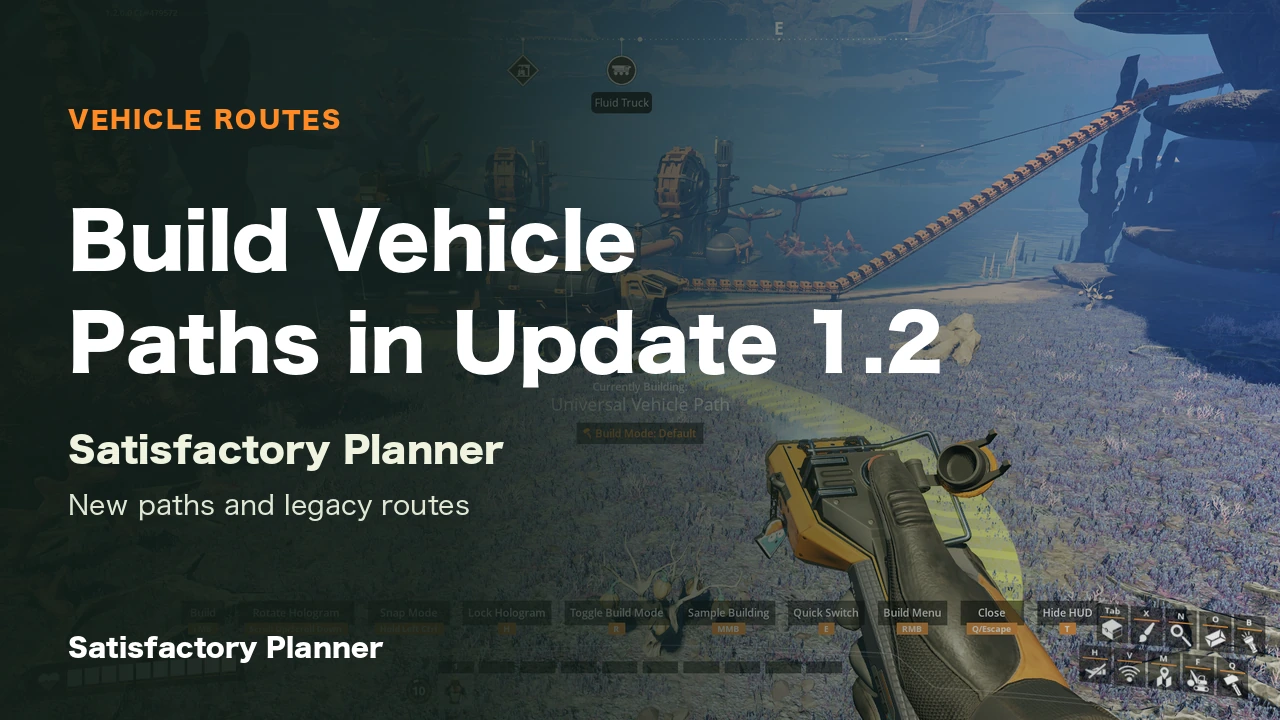
This page covers the official basic placement workflow and changes named in the patch notes. It does not add undocumented maximum slopes, vehicle spacing, collision guarantees, or a junction shape that works for every vehicle. The Press Kit image is an early Update 1.2 path-placement scene; it is not a screenshot of the current interface or a step-by-step demonstration for the current build.
Official workflow and patch history
Related guides
Try it in the planner
Opens the planner with the conditions from this guide already loaded. Target rates and the recipes you allow can be changed once it is open.
Check the machine count for the line you plan to transport